01 1.Linux environment installation
Generally, when we personally use PCs, we use Windows environment, and some macOS environments.
How to have a linux environment
- Install linux using VMware virtual machine
- Use docker
- Use cloud servers
VMware installs linux virtual machine
What is a virtual machine?
Through virtualization technology, computer hardware is virtualized in the computer and an operating system is installed on the virtual hardware to obtain a virtual computer.
call it virtual machine
Install VMware
VMware official website
VMware is a paid software, we can try it within a month
Or use it through other channels
Download page
https://www.vmware.com/products/workstation-pro/workstation-pro-evaluation.html
Then click Download Now
After downloading, just click Next to complete the installation.
After installation, you need to make sure you have these two virtual network cards
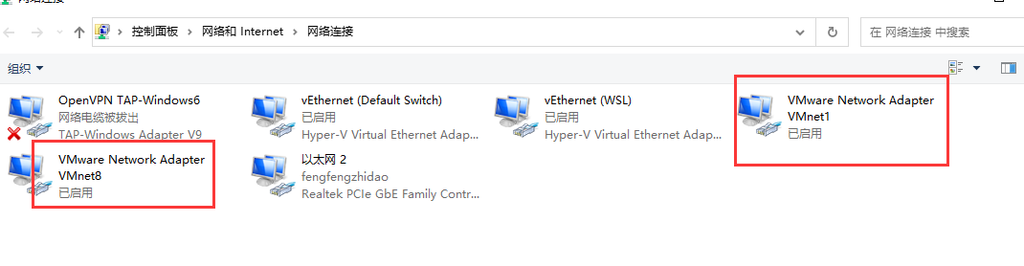
If there is no such thing, it means there is a problem with the installation. Just uninstall and reinstall. Be sure to ensure that the two network cards have
Install centos
http://isoredirect.centos.org/centos/7/isos/x86_64/
No matter where we enter, we only download the installation package named DVD-2009.iso, which is generally 4G in size.
Alibaba Cloud centos download path
https://mirrors.aliyun.com/centos/7/isos/x86_64/
VMware install centos
Illustration
Virtual machine network settings
There are three modes of virtual machine networking
bridge
NAT
Host only
Choose different modes according to different usage situations
-
Internet access required
Then choose bridging and NAT
-
I want to be on the same intranet as the host and want other machines on the intranet to access the virtual machine.
Then choose bridging
-
No Internet access
Then select host only
Remote connection to linux
It is very inconvenient to operate Linux directly in VMware
We can use ssh client to connect to linux through ssh
command connection
ssh root@127.0.0.1 -p 2222
MobaXterm
docker install centos container
If you don’t want to install a virtual machine, then using docker to build a centos virtual machine in a container is a good solution.
# 指定基础镜像
FROM centos:7
# 配置环境变量和本地软件

# 安装ssh
RUN yum -y install wget
RUN rm -rf /etc/yum.repos.d/*
RUN wget -O /etc/yum.repos.d/CentOS-Base.repo http://mirrors.aliyun.com/repo/Centos-7.repo
RUN yum clean all
RUN yum install -y openssh-server sudo
RUN sed -i 's/UsePAM yes/UsePAM no/g' /etc/ssh/sshd_config
RUN echo "root:root" | chpasswd
RUN ssh-keygen -t dsa -f /etc/ssh/ssh_host_dsa_key
RUN ssh-keygen -t rsa -f /etc/ssh/ssh_host_rsa_key
RUN mkdir /var/run/sshd

# 暴露端口
EXPOSE 22
# 入口
CMD ["/usr/sbin/sshd", "-D"]
Build it yourself
docker build -t centos7-ssh .

docker run -itd --name centos -p 2222:22 centos7-ssh

# 连接ssh
ssh root@127.0.0.1 -p 2222 # 默认密码是root
use mine
docker pull fengfengzhidao/centos7-ssh:v1
docker run -itd --name centos -p 2222:22 fengfengzhidao/centos7-ssh:v1
Cloud Server
Choose a cloud service provider and buy a cloud server
Generally, various cloud service vendors have great discounts for new users.
You can choose according to your needs
02 2. First experience with Linux
Understand the linux command format
The format of linux command: command [-options] [parameter]
- command: command, indicating the operation to be performed, which can be a system command, a custom command or an alias, etc.
- options: options, used to specify the specific behavior of a command or modify its default behavior, usually starting with a single dash -, there can be multiple options, or they can be merged together
- parameter: Parameter, used to provide specific content or data required for command operations. There can be multiple parameters. Multiple parameters are usually separated by spaces.
Among them [-options], [parameter] are optional
For example, the ls -l /home command means to list the files and subdirectories under the /home directory and display their detailed information in long format, where ls is the command, -l is the option, and /home is the parameter
linux basic commands
ls   cd   pwd   mkdir   mv  rm  cat  which
find   grep   wc   echo  tail   vi/vim   # 后面逐个学习
ls
| Method | Explanation |
| ls | List all files and subdirectories in the current working directory |
| ls -a | List all files and subdirectories in the current working directory, including hidden files starting with . |
| ls -l | Displays all files and subdirectories in the current working directory in long format. The command format can also be abbreviated as ll |
| ls -a -l -h | Display all files and subdirectories in the current working directory in long, human-readable format, including hidden files starting with . |
cd
pwd
mkdir
-p: parents, create the directory recursively. If the parent directory does not exist, create it together.-m: mode, set the permission mode for creating directories
touch
cp
-r: recursive, recursively copies the entire directory tree, used to copy directories-f: force, indicating that if the target file already exists, the target file will be overwritten forcibly, and the user will not be prompted whether to overwrite the target file.
mv
-r: recursive, recursive move, used to move the directory and all files and subdirectories under it-f: force, forcibly overwrite the target file or directory, and will not prompt the user whether to overwrite the target file.
rm
-r: recursive, recursive deletion, used to delete the directory and all files and subdirectories under it-f: force, forcefully delete files or directories without any prompts
There are three common types of wildcards:
- Asterisk (*): matches zero or more of any characters.
- Question mark (?): matches any character, excluding null characters.
- Square brackets ([]): match any character within the specified range, and can also be used to indicate an exclusion range.
cat
- -n: number, displays the line number of each line;
- -E: show-ends, displays the $ symbol at the end of each line;
- -b: number-nonblank, only displays line numbers for non-blank lines;
- -s: squeeze-blank, compress multiple blank lines into one blank line.
Expand
- more
- less
which
Used to find and display the absolute path of the specified command
linux system display
uname
The uname command can be used to view system kernel information.
uname -a
Linux localhost.localdomain 3.10.0-1160.76.1.el7.x86_64 #1 SMP Wed Aug 10 16:21:17 UTC 2022 x86_64 x86_64 x86_64 GNU/Linux
# 该命令将显示系统的内核版本、主机名、操作系统类型等信息
hostnamectl
hostnamectl
   Static hostname: localhost.localdomain
         Icon name: computer-vm
           Chassis: vm
        Machine ID: c0f46089e2834f09801336a1bd501535
           Boot ID: da0850fcbf234c7d961bfa06e3d2988b
    Virtualization: kvm
  Operating System: CentOS Linux 7 (Core)
       CPE OS Name: cpe:/o:centos:centos:7
            Kernel: Linux 3.10.0-1160.76.1.el7.x86_64
      Architecture: x86-64
date
Display the current computer time
Format: date [parameter] [+date format]
# 以年月日时分秒的格式输出
date "+%Y-%m-%d %H:%M:%S"
uptime
Shows how long the computer has been booted
uptime
 17:13:51 up 13 days, 20:38,  4 users,  load average: 0.03, 0.08, 0.13
  时间      运行了多长时间     当前登录用户数   过去1、5、15分钟内可用的系统负载的平均值

uptime -p   # 以人类可识别的方式输出系统从开机到到当前的运行时长
up 1 week, 6 days, 20 hours, 41 minutes

uptime -s  # 以yyyy-mm-dd HH:MM:SS格式输出系统的启动时间
2023-11-23 20:34:55
Disk space
df checks the file system in units of disk partitions, and can obtain information such as how much space is occupied by the hard disk, how much space is currently left, etc.
df -h
文件系统                分区大小 已使用 剩余  使用率  挂载点
Filesystem               Size  Used Avail Use% Mounted on
devtmpfs                 9.6G     0  9.6G   0% /dev
tmpfs                    9.7G     0  9.7G   0% /dev/shm
tmpfs                    9.7G   18M  9.6G   1% /run
tmpfs                    9.7G     0  9.7G   0% /sys/fs/cgroup
/dev/mapper/centos-root   50G   34G   17G  67% /
/dev/vda2               1014M  149M  866M  15% /boot
/dev/mapper/centos-home  2.0T  122G  1.9T   7% /home
The original English meaning of du is disk usage, which means to display the usage of disk space and is used to view the total size of the current directory.
du -sh  # 查看当前目录的大小
274M    .
du -sh *  # 查看当前目录下每个文件的大小
136K    api
4.0K    cache
32K     config
Some parameter explanations
-s:对每个Names参数只给出占用的数据块总数。
-a:递归地显示指定目录中各文件及子目录中各文件占用的数据块数。若既不指定-s,也不指定-a,则只显示Names中的每一个目录及其中的各子目录所占的磁盘块数。
-b:以字节为单位列出磁盘空间使用情况(系统默认以k字节为单位)。
-k:以1024字节为单位列出磁盘空间使用情况。
-c:最后再加上一个总计(系统默认设置)。
-l:计算所有的文件大小,对硬链接文件,则计算多次。
-x:跳过在不同文件系统上的目录不予统计。
-h:以K,M,G为单位,提高信息的可读性
Memory
The free command is a tool used to view system memory usage
free -h
            总内存大小      已使用      剩余大小   共享内存     缓存/缓冲区
              total        used        free      shared  buff/cache   available
Mem:            19G        3.1G        8.9G         17M        7.2G         15G
Swap:          9.7G        2.0M        9.7G
echo
"echo" is a commonly used Linux command that can be used to write one or more lines of text to standard output or a file. It is usually used to output some prompt information or the output of a test script. It can also be used to output the value of a variable or the result of executing a command.
echo [parameter] [string]
-n: Do not automatically wrap the line, and do not follow the carriage return character after the output string.
-e: Allows escape characters in the output string, such as "\n" representing a newline character, "\t" representing a tab character, etc.
>echo "Hello\nWorld"
Hello\nWorld
>echo -e "Hello\nWorld"
Hello
World
>name=枫枫
>echo $name
枫枫
Network status
Configure static IP and put them in the network related section. We only learn two commands here.
ifconfig
If you don’t have this, install the net-tools package.
If you know how to check the IP address and the network card, it will be fine.
>ifconfig
eth0: flags=4419<UP,BROADCAST,RUNNING,PROMISC,MULTICAST>  mtu 1500
        inet 192.168.200.11  netmask 255.255.255.0  broadcast 192.168.200.255
        inet6 fe80::a029:541e:d792:a14e  prefixlen 64  scopeid 0x20<link>
        ether 52:54:00:26:57:39  txqueuelen 1000  (Ethernet)
        RX packets 221161688  bytes 17046295072 (15.8 GiB)
        RX errors 0  dropped 212468  overruns 0  frame 0
        TX packets 219839840  bytes 20237354066 (18.8 GiB)
        TX errors 0  dropped 0 overruns 0  carrier 0  collisions 0

lo: flags=73<UP,LOOPBACK,RUNNING>  mtu 65536
        inet 127.0.0.1  netmask 255.0.0.0
        inet6 ::1  prefixlen 128  scopeid 0x10<host>
        loop  txqueuelen 1000  (Local Loopback)
        RX packets 1556  bytes 132774 (129.6 KiB)
        RX errors 0  dropped 0  overruns 0  frame 0
        TX packets 1556  bytes 132774 (129.6 KiB)
        TX errors 0  dropped 0 overruns 0  carrier 0  collisions 0
ip addr
>ip addr
1: lo: <LOOPBACK,UP,LOWER_UP> mtu 65536 qdisc noqueue state UNKNOWN group default qlen 1000
    link/loopback 00:00:00:00:00:00 brd 00:00:00:00:00:00
    inet 127.0.0.1/8 scope host lo
       valid_lft forever preferred_lft forever
    inet6 ::1/128 scope host
       valid_lft forever preferred_lft forever
2: eth0: <BROADCAST,MULTICAST,PROMISC,UP,LOWER_UP> mtu 1500 qdisc pfifo_fast state UP group default qlen 1000
    link/ether 52:54:00:26:57:39 brd ff:ff:ff:ff:ff:ff
    inet 192.168.200.11/24 brd 192.168.200.255 scope global noprefixroute ens3
       valid_lft forever preferred_lft forever
    inet6 fe80::a029:541e:d792:a14e/64 scope link noprefixroute
       valid_lft forever preferred_lft forever
Historical commands
history
history 10  # 显示最新执行的10条命令
history -d 1108  # 删除1108行的命令

!历史命令的行号  # 再次执行对应的命令
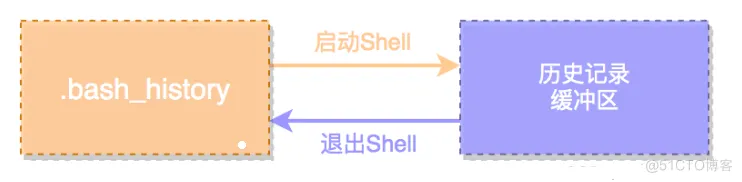
The history command will only record the command history of the current user, but not the commands executed by other users.
In addition, the history command will only save the most recently executed 1000 commands by default.
Software package management
This command is different for different distributions, so you need to pay attention to this.
The package management of centos is yum
Ubuntu’s package management is apt-get
yum install vim -y  # 安装vim软件
yum remove vim  # 卸载软件包
yum source update command
yum clean all
yum makecache
yum update
Change source
curl -o /etc/yum.repos.d/CentOS-Base.repo https://mirrors.aliyun.com/repo/Centos-7.repo
yum makecache
File transfer
scp
The SCP command is a command line tool based on the SSH protocol, used to quickly and securely transfer files between different operating systems. Just open a terminal and enter the SCP command to start using it
# 将当前主机的xx文件传输到目标主机的目标目录上去
scp 文件名称 root@目标主机:目标目录
# 将目标主机的文件下载到当前主机的xx目录
scp root@目标主机:目标目录 文件目录
Some commonly used parameters
-F:指定ssh配置文件
-i:identity_file 从指定文件中读取传输时使用的密钥文件,此参数直接传递给ssh
-o:指定使用的ssh选项
-P:指定远程主机的端口号
-p:保留文件的最后修改时间,最后访问时间和权限模式
-q:不显示复制进度
-r:以递归方式复制
Restart, shut down
# 关机
shutdown -h now
init 0
# 重启
shutdown -r now
reboot
Reference documentation
Common basic Linux commands https://blog.csdn.net/tjfsuxyy/article/details/130609676
Common Linux operating commands https://blog.csdn.net/fuhanghang/article/details/128848825
Transfer files from windows to linux https://www.linuxprobe.com/wxlcwjkjjbcz.html
date time https://blog.csdn.net/weixin_43901998/article/details/126634560
uptime https://blog.csdn.net/z19861216/article/details/130881624
Disk Space https://www.linuxprobe.com/learn-how-to-2.html
free command https://blog.csdn.net/AnChenliang_1002/article/details/131465963
echo command https://baijiahao.baidu.com/s?id=1762535150936455782&wfr=spider&for=pc
ifconfig https://blog.csdn.net/jks212454/article/details/131208875
yum directory https://blog.51cto.com/u_15867943/6165536
yum source configuration https://www.python100.com/html/61245.html
scp command https://www.lxlinux.net/3090.html
du command https://blog.csdn.net/AnChenliang_1002/article/details/131466834
03 3.linux files and directories
View files
more
The more function is similar to cat. The cat command displays the contents of the entire file on the screen from top to bottom. more will be displayed page by page to facilitate users to read page by page.
more [-dlfpcsu ] [-num ] [+/ pattern] [+ linenum] [file … ]
parameters
+n          从笫n行开始显示
-n          定义屏幕大小为n行
+/pattern   在每个档案显示前搜寻该字串(pattern),然后从该字串前两行之后开始显示
-c          从顶部清屏,然后显示
Space bar, Enter key Next page
b Previous page
less
The less tool is also a tool for paginated display of files or other output.
The usage of less is more flexible than that of more. When using more, we have no way to turn forward and can only look back. However, when using less, we can use the [pageup] [pagedown] and other key functions to flip back and forth through the file, making it easier to view the contents of a file! In addition, you can have more search functions in less, not only you can search down, but you can also search up.
less [parameter] file
-e 当文件显示结束后,自动离开
-g 只标志最后搜索的关键词
-i 忽略搜索时的大小写
-m 显示类似more命令的百分比
-N 显示每行的行号
/字符串:向下搜索"字符串"的功能
?字符串:向上搜索"字符串"的功能

空格键 滚动一行
回车键 滚动一页
[pagedown]: 向下翻动一页
[pageup]:  向上翻动一页
head
Sometimes, we only want to display the first few lines of a file. In this case we can use head command which comes in handy when we want to display the first part of the file
head [OPTIONS] [FILE-1] [FILE-2] ..
By default, the head command displays the first ten lines of the input file
-n 数字    显示前多少行
-n -数字   跳过文件的最后N行
-c 数字    显示前多少字符
-c -数字   跳过最后N字符
-v        显示文件名
-q        不显示文件名,(head多个文件的时候,默认显示文件名)
tail
The tail command can write the contents from the specified position of the file to the end of the file to the standard output.
tail 文件 # 显示文件最后10行
tail -n 1 文件  # 显示最后一行
tail -f 文件 # 显示最后10行,并且持续追踪
tail -nf 文件  # 显示最后n行,并且持续追踪
wc
The wc command is used to calculate/statisticate the number of bytes, characters, lines, and words in a file. Using the wc command we can calculate the number of Bytes, words or columns of a file
-c, --bytes    输出字节数统计
-m, --chars    输出字符数统计
-l, --lines    输出行数统计
    --files0-from=文件 从指定文件读取以空字符(NUL)终止的名称;
                       如果该文件被指定为 - 则从标准输入读文件名
-L, --max-line-length  显示最长行的长度
-w, --words            显示单词计数
Count the number of files in the current directory
ls | wc -l
Count the number of processes running on the system
ps | wc -l
File comparison diff
> diff a1.txt a2.txt
1c1
< 程序员
---
> 程序媛
The diff command refers not to the first file, but to the second file. Its output information has the following characters:
c: Indicates that some modifications must be made
a : Indicates that some content must be added
d: Indicates that some content must be deleted
The number before the character indicates the number of lines in the first file, and the content after the character indicates the number of lines in the second file.
< represents content from the first file, while > represents content from the second file.
File query find
find search path [options] search content
-name:按照文件名搜索
-iname:按照文件名搜索,不区分文件名大小写
-inum:按照inode号搜索
-size[+|-]大小:按照指定大小搜索文件

-atime[+|-]时间:按照文件访问时间搜索
-mtime[+|-]时间:按照文件数据修改时间搜索
-ctime[+|-]时间:按照文件状态修改时间搜索

-type d:查找目录
-type f:查找普通文件
-type l:查找软链接文件
find . -name main.go   # 在当前目录下搜索名称是 main.go的
find . -iname main.go  # 在当前目录下搜索名称是 main.go的,不区分大小写
Search by file size
You can use ll -h to check the file size
find . -size +200M # 搜索当前目录下文件大于200M的
Search by modification time
Files in Linux have three times: access time (atime), data modification time (mtime), and status modification time (ctime). We can also search files according to time.
find ./ -mtime -1  # 搜索一天内修改的文件
find ./ -mtime 5  # 搜索5-6天,那天修改的文件
Search by file type
 find ./  -type d   # 查找当前文件中的目录
 find ./ -mtime 5 -type d  # 搜索5-6天,那天修改的目录
Logical operators
-a:and逻辑与
-o:or逻辑或
-not:not 逻辑非
File permissions and attributes
A basic concept: everything is a file under Linux
Three permissions for files
rwx 可读可写可执行,转换为数字就是 421
| for files | for directories | |
|---|---|---|
| r read permission | whether the file contents can be viewed | whether the contents of the ls directory can be listed |
| w write permission | whether the file content can be edited | whether the document can be created, deleted, copied, and moved |
File properties
-rwxr-xr-x      2     root    root     83      Mar 2 18:35   appveyor
类型 权限      链接数    属主    属组     大小        日期         文件名
-rwxr-xr-x
分成4个部分来看
- rwx r-x r-x
Column 1 represents the file type, where d represents a directory, - represents an ordinary file, and l represents a soft link.
Column 2, rwx, indicates that the owner has read, write, and executable permissions.
Column 3 r-x, represents the permissions owned by the group user
Column 4 r-x, indicates the permissions other users have
chmod command changes file permissions
Can write numbers
Remember the relationship of 4 2 1
chmod 777 xxx.txt
表示属主,组用户,其他用户都具有可读可写可执行权限
Can write characters
u     表示文件属主用户(user)
g     表示组用户     (group)
o     表示其它人     (other)
a     表示全部      (all,默认值)

r     读
w     写
x     执行

+     表示新增
-     表示删除
=     表示设置
Remember one of the most commonly used
chmod +x main
This is to add executable permissions to all users
The chown command changes the file owner and group.
Sometimes, this file was not created by you and you do not have the corresponding permissions for it.
You can use chown to change its owner
chown root main
这句话的意思就是将main文件的属主修改为root
chown -R root dist
加一个-R表示把目录下的所有文件同等设置
wget
Tool for downloading files in linux system
You can remember some common parameters
 -o, –-output-file=FILE 把记录写到FILE文件中
 -q, –-quiet 安静模式(没有输出)
 -b 后台下载

 -O –-output-document=FILE 把文档写到FILE文件中
Download a single file
wget http://www.jsdig.com/testfile.zip

Save with specified file name
wget -O xxx.zip http://www.jsdig.com/testfile.zip
Background download
04 4.linux disk and file system
linux file system
In Linux, everything is a file. Not only ordinary files and directories, but even the commands we use are managed by the file system.
ls -l /
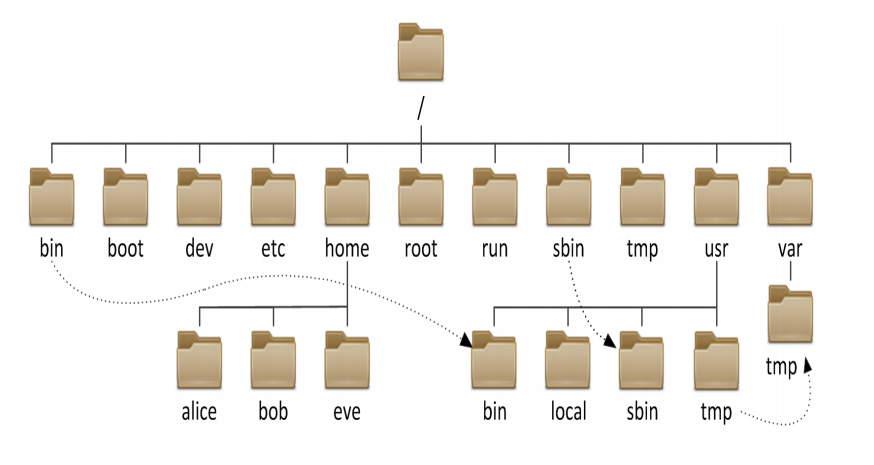
Make a brief note of what each directory does.
/       - 根目录,整个文件系统层次结构的根目录,所有内容都位于此目录下。
/bin    - 存放基本的可执行的程序(二进制文件),包括最基本的命令,如ls和cp。
/boot   - 包含内核引导加载程序文件。
/dev    - 存放设备文件。
/etc    - 核心系统配置目录,应该只保存配置文件。
/home   - 用户的主目录,保存你的文档,文件,设置等。
/lib、/lib32、/lib64、/libx32    - 主要目的是存放特定的库,这些库是在/bin和/sbin目录里的工具所需要的库,/lib中的库可以是32位或64位
/lost+found                     - 这个目录一般情况下是空的,当系统非法关机后,如果你丢失了一些文件,在这里能找回来,通常很少用到此目录
/media  - 用作可移动媒体的连接点,如USB驱动器。
/mnt    - 临时挂载的文件系统。
/opt    - 可选应用软件包。
/proc   - 当前运行进程的信息。
/root   - root用户的主目录。
/run    - 自上次引导以来运行系统的信息。
/sbin   - 包含基本的系统二进制文件,通常只能由root用户运行。
/srv    - 系统提供的特定于站点的数据。
/tmp    - 临时文件的存储
/usr    - 通常它不包含主文件夹意义上的用户文件。这意味着用户安装的软件和实用程序,但这并不是说你不能在那里添加个人目录。在这个目录中有/usr/bin、/usr/local等子目录。
/var    - 变量目录,用于系统日志记录、用户跟踪、缓存等。
Relative path and absolute path
Extremely important, the same path in web development applies
- Absolute path: refers to the exact location of the file in the file system. Usually on localhost, starting from the root directory
- Relative path: refers to the location of a file or directory relative to the user's current location
Soft and Hard Links
Soft link
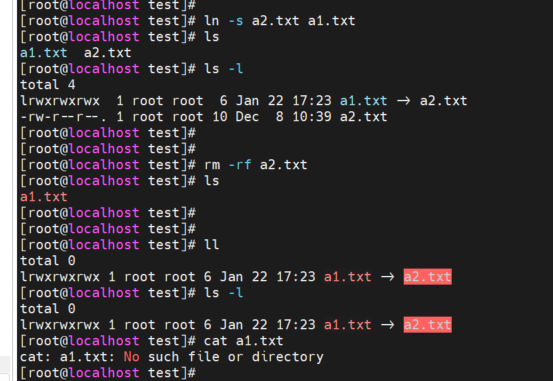
Its function is to establish a synchronized link for a certain file in another location. Can be understood as a shortcut in Windows
ln -s 真实的文件 软链接路径
If you delete the source file, the soft link will no longer work properly.
Hard link
Multiple file names refer to the same physical file
ln 真实的文件 硬链接路径
There is a backup effect. If the source file is deleted, the hard-linked file can still be used.
If your link is still a soft link, it is actually still a soft link.
Other parameters
-f : 链结时先将与 dist 同档名的档案删除
-i : 在删除与 dist 同档名的档案时先进行询问
-s : 进行软链结(symbolic link)
-v : 在连结之前显示其档名
References
linux file system https://zhuanlan.zhihu.com/p/616512142
Detailed explanation of file system https://blog.csdn.net/qq_54735854/article/details/129458952
Commonly used commands in file systems https://www.php.cn/faq/539282.html
Environment variables https://blog.csdn.net/weixin_74078718/article/details/129332049
Linux environment variables https://zhuanlan.zhihu.com/p/638435907
05 5.vim
It is often used to edit some text or code under Linux systems.
Installation
Generally speaking, the vi command is available, but vim may not be.
If not, just use yum install -y vim to install it.
vim working mode
Command mode
Command mode is the default mode for operating through the vim command, and can be switched to other modes. Switching to other modes also requires command mode as an intermediate mode.
Remember some common operations
yy       复制光标所在行
p        粘贴剪贴板的内容,在当前行后面新增一行
dd       删除所选行
x        删除光标所在位置的字符
u        撤销上次的操作
ctrl r   撤销撤销的操作

shift  g   最后一行开头
gg         文档内容的开头
shift  4   当前行行尾
shift  6   当前行行首
w          向后移动一个单词的位置
b          向前移动一个单词的位置

(如果没有方向键的话)
h          向左
j          向下
k          向上
l          向右
Insert mode
Switched by pressing i/a/o in command mode
i         光标不会移动
a         光标向后移动一个字符的位置,按Esc退出该模式后光标会向前挪一个字符的位置
o         会伴随有新起一行的操作,按Esc退出该模式后换行的操作仍不会撤销
To exit insert mode, press esc, or ctrl C
Bottom row mode
Get by in command mode, typing:
set nu / set nonu     显示或去掉行号
数字                   定位到某一行
wq!                   保存并强制退出
References
Detailed explanation of editor vim https://blog.csdn.net/weixin_60371270/article/details/128593013
06 6. Process management
What is a process
In Linux, a process refers to a running program instance. A process can be regarded as a task in the system. It can perform various operations, such as opening files, sending network requests, calculating data, etc. Each process has its own independent memory space and resource usage
Each process has a unique process ID (PID), which is a non-negative integer that identifies the process. In addition to PID, each process has other attributes, such as parent process ID, process status, process priority, memory usage, etc.
There are many commands and tools in Linux systems that can be used to manage and monitor processes, such as ps, top, kill, etc.
Among them, the ps command can list the detailed information of all processes in the current system, including process name, PID, status, CPU usage, etc.
The top command can display the resource usage of each process in the system in real time to help users perform performance monitoring and troubleshooting.
The kill command can be used to stop a process from running.
Background execution
Here I wrote a script that prints the current time
Used to practice program background execution
There are two ways to execute sh script
One is sh xxx.sh
The other is chmod +x xxx.sh ./xxx.sh
#!/bin/bash

# 设置文件路径
output_file="date.log"

# 无限循环,每隔一秒执行一次
while true; do
    # 获取当前时间,并格式化为小时:分钟:秒
    current_time=$(date "+%H:%M:%S")

    # 打印当前时间到终端
    echo "当前时间: $current_time"

    # 将当前时间追加到文件
    echo "$current_time" >> "$output_file"

    # 等待一秒钟
    sleep 1
done
&
However, running the job in the background will still output the results to the screen, interfering with your work.
It is best to redirect the output to a file
./print_time.sh &

./print_time.sh  > out.log &
nohup
nohup stands for don't hang, it is a Linux utility that keeps a process running even if you exit the terminal or shell.
nohup ./print_time.sh &
It will generate a nohup.out log file by default
systemctl
Refer to this, the video quickly passed through
https://blog.csdn.net/Dayu_log/article/details/129009345
https://blog.csdn.net/weixin_53064820/article/details/127539019
Check which processes there are ps command
View all processes
ps aux
The -a option instructs ps to display all processes from all users, but this excludes processes associated with a specific terminal
The -u option represents a user-facing format that provides more detailed information about running processes
The -x option lists processes that typically start when the system boots, as well as background processes
USER       PID %CPU %MEM    VSZ   RSS TTY      STAT START   TIME COMMAND
root         2  0.0  0.0      0     0 ?        S    Jan17   0:00 [kthreadd]
- USER – the user running the process
- PID – Process ID
- %CPU – CPU usage percentage
- %MEM – Percentage of physical memory occupied
- VSZ – Per-process virtual memory size in kilobytes
- RSS – size of physical memory used
- STAT – process status codes S (sleeping), Z (zombie) and R (Running)
- START – the time when the process started running
Check process by user
id 用户名  # 获取用户id

ps -u  用户id
ps -u  用户名
Display processes using PID and PPID
ps -fp PID
Check process using process name
ps -C 进程名
But this query is confusing
Or grep is more practical?
ps aux | grep 进程名
Print process tree
ps -e --forest
The process tree shows how processes are linked in a Linux system
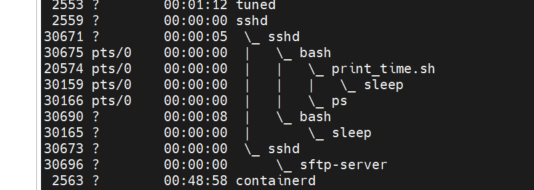
Real-time process monitoring
You can use the watch utility to monitor static information about a process. The output is updated every second as shown below
watch -n 1 'ps -eo pid,ppid,cmd,%mem,%cpu --sort=-%cpu | head'
List top processes consuming high memory
ps -eo pid,ppid,cmd,%mem,%cpu --sort=-%mem | head
List top processes that consume high cpu
ps -eo pid,ppid,cmd,%mem,%cpu --sort=-%mem | head
Shows how long a process has been running
ps -eo comm,etime,user
End the process kill command
The kill command will send a signal (mostly a termination signal) and the PID of the target process to the operating system kernel, and then the system kernel will perform corresponding operations on the specified process based on the type of signal received.
The kill command determines the process based on the PID, so the kill command can only identify the PID but not the process name.
| Signal number | Signal name | Meaning |
| 0 | EXIT | This message is received when the program exits. |
| 1 | HUP | The hang signal that hangs up a phone line or terminal connection. This signal can also cause some processes to reinitialize without terminating. |
| 2 | INT | means to end the process, but it is not mandatory. The commonly used "Ctrl+C" key combination emits a kill -2 signal. |
| 3 | QUIT | Exit |
| 9 | KILL | Kill the process, that is, forcefully end the process. |
| 11 | SEGV | Segmentation fault. |
| 15 | TERM | End the process normally and is the default signal of the kill command. |
System process monitoring top command
The top command is used to monitor system resource usage in real time, including processes, cpu, memory, etc.
Commonly used parameters
 top:启动top命令
 top -c:显示完整的命令行
 top -b:以批处理模式显示程序信息
 top -S:以累积模式显示程序信息
 top -n 2:表示更新两次后终止更新显示
 top -d 3:设置信息更新周期为3秒
 top -p 139:显示进程号为139的进程信息,CPU、内存占用率等
 top -n 10:显示更新十次后退出
Meaning of header content
PID
USER
PR         优先级值
NI         nice值,通过程序给进程设置的
VIRT       进程使用的虚拟内存的大小,单位是KiB。
RES        常驻内存的内存大小,单位是KiB。
SHR        共享内存的大小,单位是KiB。
S          表示进程的状态,有一下几个状态。
%CPU       上次一刷新之前对应的进程对CPU的占有率
%MEM       这个主要是进程使用的内存占用实际的可用的物理内存的比例
TIME+      这个表示自从进程启动以来累计消耗的CPU时间
COMMAND    启动进程的时候执行的命令
References
What is a process in linux http://www.ux20.com/news/85983.html
linux background execution https://blog.csdn.net/Pan_peter/article/details/128875714
nohup command https://www.runoob.com/linux/linux-comm-nohup.html
ps command https://zhuanlan.zhihu.com/p/583560458
kill command https://c.biancheng.net/view/1068.html
top command https://zhuanlan.zhihu.com/p/667706140
top command https://www.linuxprobe.com/linux-top-knowledge.html
07 7. User and user group management
Linux controls resource access based on user identity
Classification of user accounts
Super user: The root user is the default super user account in the Linux operating system. It has the highest authority over this host and is the only super user in the system.
Ordinary user: Created by the root user or other administrator users, the permissions they have will be restricted. Generally, they only have full permissions in the user's own home directory.
Program users: When installing the Linux operating system and some applications, some specific low-privilege user accounts will be added. These users are generally not allowed to log in to the system and are only used to maintain the normal operation of the system or a certain program, such as bin, daemon, ftp, mail, etc.
Add user
useradd
parameters
| Options | Introduction |
|---|---|
| -D | Change defaults for new users |
| -c | Add comment text |
| -d | The home directory used by new users each time they log in |
| -e | User termination date, the format of the date is YYYY-MM-DD |
| -f | The user will be permanently suspended after a few days of expiration. When the value is 0, the user is immediately suspended, and when the value is -1, this feature is turned off. The default value is -1 |
| -g | Specifies the user group corresponding to the user |
| -G | Define additional user groups |
| -m | Automatically create the user directory if it does not exist |
| -M | Do not create the user's home directory, taking precedence over the /etc/login.defs file settings |
| -n | Cancel the creation of a group named by the user name |
| -r | Create system account |
| -s | Login shell |
| -u | Specify user id |
Default user creation
useradd xxx
You can use passwd to set a password for the user
Set the user's default shell
useradd -s /bin/bash xxx
不让用户远程登录
useradd -s /sbin/nologin xxx
Specify a User Group
Normally, when a new user is created, a group with the same name as the user is created and the new user is added as a member of this group
useradd -g 已存在的组名 new_username
View user information
id
Used to display the UID (User Identifier) and GID (Group Identifier) of the currently logged in user
id # 显示当前用户的
id fengfeng  # 显示指定用户的
id root
uid=0(root) gid=0(root) groups=0(root)
Relevant user password
/etc/passwd file
In Linux systems, each user has a corresponding record line in the /etc/passwd file. This file is readable by all users and records some basic attribute information for each user.
| Field name | Description |
|---|---|
| Username | A string of user accounts, usually no more than 8 characters long, and composed of uppercase and lowercase letters and/or numbers. |
| Password | stores the encrypted user password. However, due to security risks, most Linux systems now use shadow technology to store the real encrypted user password in the /etc/shadow file. |
| User identification number | An integer that is used internally by the system to identify the user. Generally, it corresponds to the username one-to-one. |
| Group identification number | Record the user group to which the user belongs. It corresponds to a record in the /etc/group file. |
| Annotated description | Records some personal information of the user, such as the user's real name, phone number, address, etc. This field has no practical use. |
| Home directory | The user's starting working directory, which is the directory where the user is located after logging in to the system. |
| Login Shell | The process started after the user logs in, which is the interface between the user and the Linux system. |
cat /etc/passwd
root:x:0:0:root:/root:/bin/bash
bin:x:1:1:bin:/bin:/sbin/nologin
daemon:x:2:2:daemon:/sbin:/sbin/nologin
passwd command
User changes user password
User login password
passwd
Display account password related information
passwd -S root
# root PS 1969-12-31 0 99999 7 -1 (Password set, SHA512 crypt.)
Root user changes ordinary user password
Using root, you can change the password of an ordinary user without knowing the original password. You can change it successfully even if it does not meet the password policy requirements. Ordinary users must know the original password to change their password, and the new password must meet the requirements of the password policy rules.
passwd wuhs
Delete the specified user password
passwd -d wuhs
Lock user
passwd -l wuhs
Unlock user
passwd -u wuhs
Delete user
userdel
userdel [-r] xxx
- -r Delete the user login directory and all files in the directory.
Related user attributes
Switch user su
Experience administrator sudo
Reference documentation
Linux user management https://zhuanlan.zhihu.com/p/654275552
useradd https://www.linuxprobe.com/linux-useradd-root.html
passwd file https://blog.csdn.net/m0_67268191/article/details/130780244
passwd command https://blog.csdn.net/carefree2005/article/details/122274098
userdel command https://www.runoob.com/linux/linux-comm-userdel.html
08 8. Packaging and compression
An archive, also known as a package, refers to a collection of files or directories that is stored in a file. The archive is not compressed, so the space it takes up is the sum of all files and directories in it
Compression refers to the use of algorithms to process files to achieve the purpose of retaining the maximum file information and reducing the file size. The basic principle is to create a dictionary file of the same bytes by searching for repeated bytes in the file, and represent it with a code.
Common types of compressed packages under linux
| Format | Compression tool |
|---|---|
| .zip | zip compression tool |
| .gz | The gzip compression tool can only compress files and will delete the source files (usually used with tar) |
| .tar | archive |
| .bz2 | The bzip2 compression tool can only compress files and will delete the source files (usually used with tar) (not commonly used) |
| .tar.gz | First use the tar command to archive and package, then use gzip to compress |
| .tar.bz2 | First use the tar command to archive and package, then use bzip to compress |
tar command
c   #创建新的归档文件
x   #对归档文件解包
t   #列出归档文件里的文件列表
v   #输出命令的归档或解包的过程
f   #指定包文件名,多参数f写最后

z   #使用gzip压缩归档后的文件(.tar.gz)
j   #使用bzip2压缩归档后的文件(.tar.bz2)
J   #使用xz压缩归档后的文件(tar.xz)
C   #指定解压目录位置
X   #排除多个文件(写入需要排除的文件名称)
h   #打包软链接
Package file
tar -cvf xxx.tar xxx/
Pack and compress a file
tar -zcvf xxx.tar.gz xxx/
Unzip the file
# 解压到当前目录
tar -xvf xxx.tar
# 解压到指定目录  目录要存在
tar -xvf xxx.tar -C xxx/
Take a look at the contents of the bag
tar tf xxx.tar
Note: For compression and decompression commands, just replace c with x.
zip command
There are no zip and unzip tools by default and need to be installed.
yum install zip unzip -y
compressed file
zip xxx.zip xxx.txt
Compressed directory
-r recursively pack
zip -r dir.zip dir/
View the contents of the compressed package
unzip -l filename.zip
unzip -t filename.zip
Unzip the compressed package
unzip file.zip
# 指定解压目录  目录可以不存在
unzip file.zip -d xxx/
Reference documentation
Packaging and Compression https://zhuanlan.zhihu.com/p/601365738
tar and zip commands https://www.cnblogs.com/cckky/articles/16138387.html
09 9. Redirect, pipe
Redirect
I/O redirection allows us to redirect the input and output of a command to a file
Output redirection
Standard error cannot be used this way
override add
echo abc > a.txt
Append
echo 123 >> a.txt
Note: The above can only redirect standard output to a file. Standard error cannot be output to a file in this way.
Just add 2>&1 at the end
./xxx> test.log 2>&1
Input redirection
<
View file contents
cat < data.txt
<<
Create multiple lines of text
$ cat << EOF > message.txt
> Hello, this is a custom message!
> 你好
> EOF
Pipeline
The pipe character "|" provided by Linux separates two commands.
The output of the command on the left side of the pipe character will be used as the input of the command on the right side of the pipe character.
Using pipes consecutively means that the output of the first command becomes the input of the second command, which in turn acts as the input of the third command, and so on.
For example, check the number of lines in a file
cat xxx.txt | wc -l
That is to use the output of cat xxx.txt as the input of wc -l
xargs command
Some commands do not support the pipe character to pass parameters
For example: Search for all file information ending with ".conf" in the /etc directory, and then display it in a detailed list
find /etc -name "*.conf" | ls -l # 不支持
This function can be achieved through xargs
find /etc -name "*.conf" | xargs ls -l
- -p Ask the user each time an argument is executed.
- -i Assign each name of xargs to {}, usually line by line. You can use {} instead.
cat a.txt | xargs echo
cat a.txt | xargs -i  echo {}
grep
grep is a tool that can use "regular expressions" to perform "global search". grep will perform a global search in a text file according to the specified regular expression and print out the searched lines.
parameters
-A<显示列数> 除了显示符合范本样式的那一行之外,并显示该行之后的内容。
-b 在显示符合范本样式的那一行之外,并显示该行之前的内容。
-c 计算符合范本样式的列数。
-C<显示列数>或-<显示列数>  除了显示符合范本样式的那一列之外,并显示该列之前后的内容。
-d<进行动作> 当指定要查找的是目录而非文件时,必须使用这项参数,否则grep命令将回报信息并停止动作。
-e<范本样式> 指定字符串作为查找文件内容的范本样式。
-E 将范本样式为延伸的普通表示法来使用,意味着使用能使用扩展正则表达式。
-f<范本文件> 指定范本文件,其内容有一个或多个范本样式,让grep查找符合范本条件的文件内容,格式为每一列的范本样式。
-F 将范本样式视为固定字符串的列表。
-G 将范本样式视为普通的表示法来使用。
-h 在显示符合范本样式的那一列之前,不标示该列所属的文件名称。
-H 在显示符合范本样式的那一列之前,标示该列的文件名称。
-i 忽略字符大小写的差别
-v 反转查找。
test file
I aaam teacher
I aaaaaam student
I like Linux
I like JAVA
Hello World
世界,你好!

12312434
324828
fdjsoifjidosa
joijofids.
joijiodsf.

#jidfjisoaf
#fjidsfoijsdaifo
Normal search
grep "L" test.txt
Not case sensitive
grep -i "L" test.txt
Output lines starting with i and are case-insensitive
grep -i "^i" test.txt
-n means display matching lines and line numbers
Print the lines before and after the match
# 打印匹配行前两行
grep Linux test.txt  -n -B2
# 打印匹配行后两行
grep Linux test.txt  -n -A2
# 打印匹配行前后两行
grep Linux test.txt  -n -C2
Use the -c option to count only the total number of rows that meet the conditions without printing the rows.
grep "Linux" test.txt -c
Exclude matching rows
grep "Linux" test.txt -v
Match empty lines
grep "^quot; test.txt -n
The "." point represents any character, there is only one, and it does not include blank lines.
grep "2.." test.txt -n
"*" means finding the previous character 0 or more times
grep "12*" test.txt -n
".*" means everything, including blank lines
grep ".*" test.txt -n
[abc] means matching any character in the square brackets, a or b or c, the common form is as follows
- [a-z] matches all lowercase single letters [A-Z] matches all single uppercase letters
- [a-zA-Z] matches all single uppercase and lowercase letters
- [0-9] matches all single digits
- [a-zA-ZO-9] matches all numbers and letters
grep "[abc]" test.txt -n
extended regular expression
Grep only supports extended regular expressions when the -E option is used. When the -E option is not used, grep only supports basic regular expressions by default.
grep -E "H?ello" test.txt -n
Used in conjunction with the pipe character
cat test.txt | grep -E "H?ello" -n
Reference documentation
Command > https://blog.csdn.net/cpp_learner/article/details/128642939
< << <<< https://blog.csdn.net/weixin_43025343/article/details/132537234
Standard Output and Error https://www.cnblogs.com/LMIx/p/17401814.html
linux pipe character https://blog.csdn.net/weixin_44215654/article/details/131612430
xargs command https://www.runoob.com/linux/linux-comm-xargs.html
grep command https://blog.csdn.net/xijinno1/article/details/129942646
10 10. Software installation and environment variables
Three ways to install software on Linux
1.rpm安装          用于离线安装
2.yum安装          用于大部分的在线安装
3.源代码编译安装
yum
YUM is the abbreviation of "Yellow dog Updater, Modified". It is a software package manager. YUM automatically downloads and installs RPM packages from specified places (rpm package addresses of related websites or local rpm paths), which can solve dependency problems very well.
The simplest understanding of dependencies is that when you play a game on Windows, the result is that the directx version is too low to run. And the common prompt after running a certain program is that .dll is not found. There is also a software. The installation instructions ask you to install .net first.
Basic installation
yum install 软件名
yum install 软件名 -y  # 自动确认
Common usage table
| Command | Function |
|---|---|
| yum check-update | Check all packages that can be updated |
| yum update | Download and update all installed software packages on the system |
| yum upgrade | Large-scale version upgrade, different from yum update, even old obsolete packages are upgraded |
| yum install | Install software package |
| yum update | Update the specified software package |
| yum remove | Remove the specified package |
| yum localinstall | Install local RPM packages (different from the rpm -i command, dependent packages can be installed at the same time) |
| yum localupdate | Update local RPM packages (different from the rpm -U command, dependent packages can be installed at the same time) |
| yum list | List all rpm packages in the resource library that can be installed or updated, as well as installed rpm packages |
| yum search | Detects the name, description, overview and listed maintainers of all available software, looking for values that match a regular expression |
yum source change
The default yum source of the Linux system is from abroad, and the download speed is very slow, or some software cannot be downloaded. Therefore, you need to change the yum source to speed up software downloading.
Manual source change
#安装wget软件 如果没有安装wget命令
yum install -y wget

#备份旧的yum源
mv /etc/yum.repos.d/CentOS-Base.repo /etc/yum.repos.d/CentOS-Base.repo.backup

#下载新的yum源
wget -O /etc/yum.repos.d/CentOS-Base.repo http://mirrors.aliyun.com/repo/Centos-7.repo

#更新yum缓存
yum clean all
yum makecache
Use third-party tools to change sources
#安装yum-utils
yum -y install yum-utils

#更改yum源
yum-config-manager --add-repo http://mirrors.aliyun.com/repo/Centos-7.repo

#更新yum缓存
yum makecache
Common yum sources
# 阿里云
http://mirrors.aliyun.com/repo/Centos-7.repo
# 清华大学
http://mirrors.tuna.tsinghua.edu.cn/help/centos/
# 163
http://mirrors.163.com/.help/CentOS7-Base-163.repo
Remove software
Check if the package exists
yum list installed | grep packagename
Remove package
yum remove packagename
Uninstall dependent packages
yum autoremove
Force uninstall
yum remove packagename –nodeps
Offline installation
First, we need to download the rpm offline package that needs to be installed on a server that can access the Internet, and then copy it to a server that cannot access the Internet and install it.
For example, download the rpm package of pkg
yum install --downloadonly --downloaddir=./pkg vim
Then install offline
yum localinstall pkg/vim-enhanced-7.4.629-8.el7_9.x86_64.rpm
Environment variables
- Classified by effective scope
System environment variables: public, effective for all users.
User environment variables: User-private and customized personalized settings, which only take effect for this user.
- Classified by life cycle
Permanent environment variables: Configured in the environment variable script file, these scripts will be automatically executed every time the user logs in, which is equivalent to permanent effect.
Temporary environment variables: temporarily defined in the Shell when used, and will become invalid after exiting the Shell.
View environment variables
env
echo $环境变量名
Commonly used environment variables
PATH
Search directory for executable programs
LANG
Linux system language, region, character set
HOSTNAME
Server hostname
SHELL
The shell parser currently used by the user
USER
The username of the currently logged in user
HOME
The home directory of the currently logged in user
PWD
current working directory
Set environment variables
变量名='值'

export 变量名
或export 变量名='值'

如果环境变量的值没有空格等特殊符号,可以不用单引号包含。

示例:

export ORACLE_HOME=/oracle/home
export ORACLE_BASE=/oracle/base
export ORACLE_SID=snorcl11g
export NLS_LANG='Simplified Chinese_China.ZHS16GBK'
export PATH=$PATH:$HOME/bin:$ORACLE_HOME/bin:.
export LD_LIBRARY_PATH=$LD_LIBRARY_PATH:$ORACLE_HOME/lib:.
The environment variables set by export will become invalid after exiting the shell and need to be reset the next time you log in.
If you want the environment variables to take effect permanently, you need to configure them in the login script file.
System environment variables
System environment variables are effective for all users. There are three ways to set system environment variables.
- Set in /etc/profile file
When the user logs in, execute the /etc/profile file to set the system environment variables. However, Linux does not recommend setting system environment variables in the /etc/profile file
- Add the environment variable script file in the /etc/profile.d directory. This is the recommended method for Linux.
/etc/profile will execute all script files under /etc/profile.d every time it is started. /etc/profile.d is easier to maintain than /etc/profile. If you don’t want any variables, just delete the corresponding shell script under /etc/profile.d.
- Set environment variables in the /etc/bashrc file
The environment variables configured in this file will affect the bash shell used by all users. However, Linux does not recommend setting system environment variables in the /etc/bashrc file.
11 11. Network programming
Configure host name
Edit configuration file
cat /etc/hostname
It will take effect after restarting
Use the hostname command to modify
hostname newhostname
Use the hostnamectl command to modify
Some don’t have this command
hostnamectl set-hostname adminthy
The above modifications will not take effect immediately. You need to exit with ctrl+d and log in again.
Configure network card information
Network card configuration information
/etc/sysconfig/network-scripts/ifcfg-eth0
Replace the eth0 at the end with your network card name
DEVICE=eth0        # 网卡名称
HWADDR=00:0c:29:b7:75:b9        # Mac地址
TYPE=Ethernet        # 网络类型
UUID=f859baff-38d0-4987-b9e1-1f861ab87a00        # 磁盘唯一标识
ONBOOT=yes            # 是否自启动网卡
NM_CONTROLLED=yes
BOOTPROTO=none        # 网卡获取IP方式
IPADDR=10.0.0.200        # IP地址
NETMASK=255.255.255.0        # 子网掩码
GATEWAY=10.0.0.2        # 网关
DNS1=10.0.0.2        # DNS地址
USERCTL=no
PEERDNS=yes
IPV6INIT=no
How to obtain IP address
none:引导时不适用协议
static:静态分配IP地址
DHCP:自动获取IP地址
After the modification is completed, restart the network card and it will take effect.
使配置文件生效,重启单个网卡:
ifdown eth0 && ifup eth0
重启所有网卡:
/etc/init.d/network restart
Test network connectivity
Especially when many students deploy projects, they find that the browser cannot access them after deployment.
Teach you how to troubleshoot problems
ping
Using ping you can intuitively find out whether the target is reachable.
If there is no response when pinging the domain name, it may be that the domain name is written incorrectly, or it may be a DNS problem.
If you can't get data from pinging IP for a long time, it means that the host is not online. Check to see if it is not powered on or the network card is down.
But there will be special circumstances, that is, the host may ban ping
curl
I usually use this to check whether the port is open.
Not only for web port detection, ports 22, 3306, and 6379 can also be detected.
If you observe carefully, you will find that the response is different when the port is open and when the port is not open.
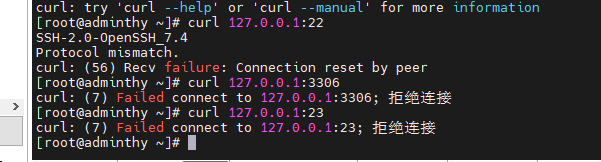
tcpdump
The first two can detect common network connection conditions.
A more advanced thing is to use a network packet capture tool to capture the traffic data.
netstat
This is generally used on the target host. If a port is not opened, first check whether the port is opened on the host.
netstat -ntlp | grep 22
Firewall
Also used on the target host
Maybe the server port is not open
firewalld command
#启动/关闭firewall
systemctl start/stop firewalld
#查看防火墙状态
systemctl status firewalld
#禁用或者启用
systemctl disable/enable firewalld
#查看 firewall目前开放的内容
firewall-cmd --list-all
Check if the port is open
firewall-cmd --query-port=8020/tcp
Add new open port
firewall-cmd --add-port=5000/tcp --permanent
#或
firewall-cmd --permanent --zone=public --add-port=8080/tcp
#–zone #作用域
#–add-port=8080/tcp #添加端口,格式为:端口/通讯协议
#–permanent #永久生效,没有此参数重启后失效

firewall-cmd --reload   # 配置立即生效
View open ports
firewall-cmd --list-port
Note: The cloud server also needs to check whether the cloud server security policy has released the corresponding port.
Reference documentation
Configure hostname https://baijiahao.baidu.com/s?id=1703430729618596145&wfr=spider&for=pc
Network card configuration https://www.cnblogs.com/os-linux/p/11908204.html
Linux test network Unicom https://blog.csdn.net/lanyuxinkong/article/details/127973614
centos firewall https://blog.csdn.net/weixin_42202992/article/details/132409819